Saturday, February 21, 2009

online tools and cms to create a site like digg facebook


How to create a website like digg or facebook.These are the questions asked by many people in yahoo answers,answer.com etc.So i plan to give the write solution for these question.Here i collected some online tools and content management system(cms) to create a website like digg,facebook.

Social News:

Want to create a website like digg?.Here is the solution for that….

Corank is a online tool to create a website like digg.You need to create a account and start bookmark your favourite sites.

Fraxi is a online to tool to create a website like digg.This powered by pligg .

Reddit is a popular social bookmarking site ,which provide it user to create a individual reddits and you can share you favourite links.

Pligg is content management system which help people to create their own digg based site in their independent server.You create a digg based site with customised templates.

comments are welcome

Read more >>

PHPizabi best and free social network engine

PHPizabi is a free social networking engine with many features.With PHPizabi you can create dating site or networking site.According to the site this script is downloaded more than 200,000 times.

phpizabi free social network engine

Features

  • Random members gender selection
  • Saved searches
  • Online status
  • Personal Gallery
  • Customizable profile data
Read more >>

ellg best and free social network engine scripts

Now you can create your own social networking site with these social network engines.There are more than 5 social network engine available,of these social network engine i selected two best and free social network engine.

Elgg is a open source social networking engine, which is designed to work in any social application.

elgg free social network engine

Features

  • Easy site management
  • tag based search
  • mobile application
  • free widgets
Read more >>

Friday, February 20, 2009

43 Web Design Mistakes You Should Avoid part 2

21. Use text navigation: text navigation is not only faster but it is also more reliable. Some users, for instance, browse the Internet with images turned off.

22. If you are linking to PDF files disclose it: ever clicked on a link only to see your browser freezing while Acrobat Reader launches to open that (unrequested) PDF file? That is pretty annoying so make sure to explicit links pointing to PDF files so that users can handle them properly.

23. Do not confuse the visitor with many versions: avoid confusing the visitor with too many versions of your website. What bandwidth do I prefer? 56Kbps? 128Kbps? Flash or HTML? Man, just give me the content!

24. Do not blend advertising inside the content: blending advertising like Adsense units inside your content might increase your click-through rate on the short term. Over the long run, however, this will reduce your readership base. An annoyed visitor is a lost visitor.

25. Use a simple navigation structure: sometimes less is more. This rule usually applies to people and choices. Make sure that your website has a single, clear navigation structure. The last thing you want is to confuse the reader regarding where he should go to find the information he is looking for.

26. Avoid “intros”: do not force the user to watch or read something before he can access to the real content. This is plain annoying, and he will stay only if what you have to offer is really unique.

27. Do not use FrontPage: this point extends to other cheap HTML editors. While they appear to make web design easier, the output will be a poorly crafted code, incompatible with different browsers and with several bugs.

28. Make sure your website is cross-browser compatible: not all browsers are created equal, and not all of them interpret CSS and other languages on the same way. Like it or not, you will need to make your website compatible with the most used browsers on the market, else you will lose readers over the long term.

29. Make sure to include anchor text on links: I confess I used to do that mistake until some time ago. It is easier to tell people to “click here”. But this is not efficient. Make sure to include a relevant anchor text on your links. It will ensure that the reader knows where he is going to if he clicks the link, and it will also create SEO benefits for the external site where the link is pointing.

30. Do not cloak links: apart from having a clear anchor text, the user must also be able to see where the link is pointing on the status bar of his browser. If you cloak your links (either because they are affiliate ones or due to other reasons) your site will lose credibility.

31. Make links visible: the visitor should be able to recognize what is clickable and what is not, easily. Make sure that your links have a contrasting color (the standard blue color is the optimal most of the times). Possibly also make them underlined.

32. Do not underline or color normal text: do not underline normal text unless absolutely necessary. Just as users need to recognize links easily, they should not get the idea that something is clickable when in reality it is not.

33. Make clicked links change color: this point is very important for the usability of your website. Clicked links that change color help the user to locate himself more easily around your site, making sure that he will not end up visiting the same pages unintentionally.

34. Do not use animated GIFs: unless you have advertising banners that require animation, avoid animated GIFs. They make a site look unprofessional and detract the attention from the content.

35. Make sure to use the ALT and TITLE attributes for images: apart from having SEO benefits the ALT and TITLE attributes for images will play an important role for blind users.

36. Do not use harsh colors: if the user is getting a headache after visiting your site for 10 consecutive minutes, you probably should pick a better color scheme. Design the color palette around your objectives (i.e. deliver a mood, let the user focus on the content, etc.).

37. Do not use pop ups: this point refers to pop ups of any kind. Even user requested pop ups are a bad idea given the increasing amount of pop blockers out there.

38. Avoid Javascript links: those links execute a small Javascript when the user clicks on them. Stay away from them since they often create problems for the user.

39. Include functional links on your footer: people are used to scrolling down to the footer of a website if they are not finding a specific information. At the very least you want to include a link to the Homepage and possibly a link to the “Contact Us” page.

40. Avoid long pages: guess what, if the user needs to scroll down forever in order to read your content he will probably just skip it altogether. If that is the case with your website make it shorter and improve the navigation structure.

41. No horizontal scrolling: while some vertical scrolling is tolerable, the same can not be said about horizontal scrolling. The most used screen resolution nowadays is 1024 x 768 pixels, so make sure that your website fits inside it.

42. No spelling or grammatical mistakes: this is not a web design mistake, but it is one of the most important factors affecting the overall quality of a website. Make sure that your links and texts do not contain spelling or grammatical mistakes.

43. If you use CAPTCHA make sure the letters are readable: several sites use CAPTCHA filters as a method of reducing spam on comments or on registration forms. There is just one problem with it, most of the times the user needs to call his whole family to decipher the letters.

Read more >>

43 Web Design Mistakes You Should Avoid part 1


43 Web Design Mistakes You Should Avoid

There are several lists of web design mistakes around the Internet. Most of them, however, are the “Most common” or “Top 10” mistakes. Every time I crossed one of those lists I would think to myself: “Come on, there must be more than 10 mistakes…”. Then I decided to write down all the web design mistakes that would come into my head; within half an hour I had over thirty of them listed. Afterwards I did some research around the web and the list grew to 43 points.

The next step was to write a short description for each one, and the result is the collection of mistakes that you will find below. Some of the points are common sense, others are quite polemic. Most of them apply to any website though, whether we talk about a business entity or a blog. Enjoy!

1. The user must know what the site is about in seconds: attention is one the most valuable currencies on the Internet. If a visitor can not figure what your site is about in a couple of seconds, he will probably just go somewhere else. Your site must communicate why I should spend my time there, and FAST!

2. Make the content scannable: this is the Internet, not a book, so forget large blocks of text. Probably I will be visiting your site while I work on other stuff so make sure that I can scan through the entire content. Bullet points, headers, subheaders, lists. Anything that will help the reader filter what he is looking for.

3. Do not use fancy fonts that are unreadable: sure there are some fonts that will give a sophisticated look to your website. But are they readable? If your main objective is to deliver a message and get the visitors reading your stuff, then you should make the process comfortable for them.

4. Do not use tiny fonts: the previous point applies here, you want to make sure that readers are comfortable reading your content. My Firefox does have a zooming feature, but if I need to use on your website it will probably be the last time I visit it.

5. Do not open new browser windows: I used to do that on my first websites. The logic was simple, if I open new browser windows for external links the user will never leave my site. WRONG! Let the user control where he wants the links to open. There is a reason why browsers have a huge “Back” button. Do not worry about sending the visitor to another website, he will get back if he wants to (even porn sites are starting to get conscious regarding this point lately…).

6. Do not resize the user’s browser windows: the user should be in control of his browser. If you resize it you will risk to mess things up on his side, and what is worse you might lose your credibility in front of him.

7. Do not require a registration unless it is necessary: lets put this straight, when I browse around the Internet I want to get information, not the other way around. Do not force me to register up and leave my email address and other details unless it is absolutely necessary (i.e. unless what you offer is so good that I will bear with the registration).

8. Never subscribe the visitor for something without his consent: do not automatically subscribe a visitor to newsletters when he registers up on your site. Sending unsolicited emails around is not the best way to make friends.

9. Do not overuse Flash: apart from increasing the load time of your website, excessive usage of Flash might also annoy the visitors. Use it only if you must offer features that are not supported by static pages.

10. Do not play music: on the early years of the Internet web developers always tried to successfully integrate music into websites. Guess what, they failed miserably. Do not use music, period.

11. If you MUST play an audio file let the user start it: some situations might require an audio file. You might need to deliver a speech to the user or your guided tour might have an audio component. That is fine. Just make sure that the user is in control, let him push the “Play” button as opposed to jamming the music on his face right after he enters the website.

12. Do not clutter your website with badges: first of all, badges of networks and communities make a site look very unprofessional. Even if we are talking about awards and recognition badges you should place them on the “About Us” page.

13. Do not use a homepage that just launches the “real” website: the smaller the number of steps required for the user to access your content, the better.

14. Make sure to include contact details: there is nothing worse than a website that has no contact details. This is not bad only for the visitors, but also for yourself. You might lose important feedback along the way.

15. Do not break the “Back” button: this is a very basic principle of usability. Do not break the “Back” button under any circumstance. Opening new browser windows will break it, for instance, and some Javascript links might also break them.

16. Do not use blinking text: unless your visitors are coming straight from 1996, that is.

17. Avoid complex URL structures: a simple, keyword-based URL structure will not only improve your search engine rankings, but it will also make it easier for the reader to identify the content of your pages before visiting them.

18. Use CSS over HTML tables: HTML tables were used to create page layouts. With the advent of CSS, however, there is no reason to stick to them. CSS is faster, more reliable and it offers many more features.

19. Make sure users can search the whole website: there is a reason why search engines revolutionized the Internet. You probably guessed it, because they make it very easy to find the information we are looking for. Do not neglect this on your site.

20. Avoid “drop down” menus: the user should be able to see all the navigation options straight way. Using “drop down” menus might confuse things and hide the information the reader was actually looking for.

Read more >>

Wednesday, February 18, 2009

Gmail Google Desktop Gadget

It is now possible to access your Gmail account on desktop without running a full-blown email client; you only need to get this new Gmail Google desktop gadget.


You only need to install the free Google Desktop software on your Windows desktop. You can do everything from reading and writing to search and star messages in your emails with this gadget. You can also use the same keyboard shortcuts as you use in web Gmail application and also facility of Auto Complete Contact. The gadget does not take much space in your sidebar or desktop, alternatively you can resize the gadget to show as many mails as you like.
You can also open more instances of the gadget to sign in in different Gmail accounts at same time. So it is defiantly a gadget worth giving it a try..

Read more >>

Change Windows XP Login Screen


Seeing same Welcome screen every time logging in Windows XP makes you sick. It is easy to get rid of welcome screen and use direct login feature but for multi-user computer this welcome screen works as login portal and is not possible to disable. There is a simple way to change this welcome screen and here is how you can do it.
Change Windows Login Screen


To begin, make sure you have enabled “use welcome screen” option in Control Panel > User Accounts > Logon and Logoff options.
Now there are two simple methods to change Windows login screen.

Method 1

Follow these steps to change the welcome screen using method 1.

  • Make a copy of C:Windowssystem32logonui.exe
  • Rename your new login screen to logonui.exe
  • Overwrite the existence logonui.exe file with new one.

It is that simple to do and you made change successfully.

Method 2

The second tip is using Registry and is easy to do as well, follow these steps for this method.

  • Copy the login screen that you want to display under C:Windowssystem3 (Give it any name like logonuiA.exe)
  • Go to Start > Run > type “regedit
  • Navigate to HKEY_LOCAL_MACHINE > SOFTWARE > Microsoft > Windows NT > CurrentVersion > Winlogon and change the value for UIHost to logonuiA.exe.

So this was second method to change Windows (Login) welcome screen.

from pakblogger

Read more >>

Hide and Lock Folders With Password In Windows


If you want to lock or hide private folders in Windows, you do not really need a software to do this. There are quite a few softwares to hide or lock folders but it can be done easily without downloading and installing software. So here is an easy method to do this without using any software. Follow these steps
  • Download this notepad file or copy following code in a notepad file.
  • Write the password by replacing the text “type your password here”.
  • Save this file as XYZ.bat (Try this if you do not know how to change extension of a website).
  • Close the file and double click XYZ.bat
  • It will create a new folder called “Locker” automatically. This folder will be in same folder as the original XYZ.bat file.
  • Place the content inside Locker folder and double click XYZ.bat. It will ask you if you want to lock, say ‘Y’ and your folder will disappear.
  • To view folder again double click XYZ.bat and enter the password (The same password that you wrote in code file).

This is easy tip to hide and lock your private folders that you do not want to share other users of same computers. The folder will be invisible to other users and even if they click your XYZ.bat file, they will have to provide password to access the folder content because it s locked and secured.

from pakblogger


Read more >>

19 Secrete about Wondows XP

You’ve read the reviews and digested the key feature enhancements and operational changes. Now it’s time to delve a bit deeper and uncover some of Windows XP’s secrets.

1. It boasts how long it can stay up. Whereas previous versions of Windows were coy about how long they went between boots, XP is positively proud of its stamina. Go to the Command Prompt in the Accessories menu from the All Programs start button option, and then type ’systeminfo’. The computer will produce a lot of useful info, including the uptime. If you want to keep these, type ’systeminfo > info.txt’. This creates a file called info.txt you can look at later with Notepad. (Professional Edition only).

2. You can delete files immediately, without having them move to the Recycle Bin first. Go to the Start menu, select Run… and type ‘gpedit.msc’; then select User Configuration, Administrative Templates, Windows Components, Windows Explorer and find the Do not move deleted files to the Recycle Bin setting. Set it. Poking around in gpedit will reveal a great many interface and system options, but take care — some may stop your computer behaving as you wish. (Professional Edition only).

3. You can lock your XP workstation with two clicks of the mouse. Create a new shortcut on your desktop using a right mouse click, and enter ‘rundll32.exe user32.dll,LockWorkStation’ in the location field. Give the shortcut a name you like. That’s it — just double click on it and your computer will be locked. And if that’s not easy enough, Windows key + L will do the same.

4. XP hides some system software you might want to remove, such as Windows Messenger, but you can tickle it and make it disgorge everything. Using Notepad or Edit, edit the text file /windows/inf/sysoc.inf, search for the word ‘hide’ and remove it. You can then go to the Add or Remove Programs in the Control Panel, select Add/Remove Windows Components and there will be your prey, exposed and vulnerable.

5. For those skilled in the art of DOS batch files, XP has a number of interesting new commands. These include ‘eventcreate’ and ‘eventtriggers’ for creating and watching system events, ‘typeperf’ for monitoring performance of various subsystems, and ’schtasks’ for handling scheduled tasks. As usual, typing the command name followed by /? will give a list of options — they’re all far too baroque to go into here.

6. XP has IP version 6 support — the next generation of IP. Unfortunately this is more than your ISP has, so you can only experiment with this on your LAN. Type ‘ipv6 install’ into Run… (it’s OK, it won’t ruin your existing network setup) and then ‘ipv6 /?’ at the command line to find out more. If you don’t know what IPv6 is, don’t worry and don’t bother.

7. You can at last get rid of tasks on the computer from the command line by using ‘taskkill /pid’ and the task number, or just ‘tskill’ and the process number. Find that out by typing ‘tasklist’, which will also tell you a lot about what’s going on in your system.

8. XP will treat Zip files like folders, which is nice if you’ve got a fast machine. On slower machines, you can make XP leave zip files well alone by typing ‘regsvr32 /u zipfldr.dll’ at the command line. If you change your mind later, you can put things back as they were by typing ‘regsvr32 zipfldr.dll’.

9. XP has ClearType — Microsoft’s anti-aliasing font display technology — but doesn’t have it enabled by default. It’s well worth trying, especially if you were there for DOS and all those years of staring at a screen have given you the eyes of an astigmatic bat. To enable ClearType, right click on the desktop, select Properties, Appearance, Effects, select ClearType from the second drop-down menu and enable the selection. Expect best results on laptop displays. If you want to use ClearType on the Welcome login screen as well, set the registry entry HKEY_USERS/.DEFAULT/Control Panel/Desktop/FontSmoothingType to 2.

10. You can use Remote Assistance to help a friend who’s using network address translation (NAT) on a home network, but not automatically. Get your pal to email you a Remote Assistance invitation and edit the file. Under the RCTICKET attribute will be a NAT IP address, like 192.168.1.10. Replace this with your chum’s real IP address — they can find this out by going to http://www.whatismyip.com — and get them to make sure that they’ve got port 3389 open on their firewall and forwarded to the errant computer.

11. You can run a program as a different user without logging out and back in again. Right click the icon, select Run As… and enter the user name and password you want to use. This only applies for that run. The trick is particularly useful if you need to have administrative permissions to install a program, which many require. Note that you can have some fun by running programs multiple times on the same system as different users, but this can have unforeseen effects.

12. Windows XP can be very insistent about you checking for auto updates, registering a Passport, using Windows Messenger and so on. After a while, the nagging goes away, but if you feel you might slip the bonds of sanity before that point, run Regedit, go to HKEY_CURRENT_USER/Software/Microsoft/Windows/Current Version/Explorer/Advanced and create a DWORD value called EnableBalloonTips with a value of 0.

13. You can start up without needing to enter a user name or password. Select Run… from the start menu and type ‘control userpasswords2′, which will open the user accounts application. On the Users tab, clear the box for Users Must Enter A User Name And Password To Use This Computer, and click on OK. An Automatically Log On dialog box will appear; enter the user name and password for the account you want to use.

14. Internet Explorer 6 will automatically delete temporary files, but only if you tell it to. Start the browser, select Tools / Internet Options… and Advanced, go down to the Security area and check the box to Empty Temporary Internet Files folder when browser is closed.

15. XP comes with a free Network Activity Light, just in case you can’t see the LEDs twinkle on your network card. Right click on My Network Places on the desktop, then select Properties. Right click on the description for your LAN or dial-up connection, select Properties, then check the Show icon in notification area when connected box. You’ll now see a tiny network icon on the right of your task bar that glimmers nicely during network traffic.

16. The Start Menu can be leisurely when it decides to appear, but you can speed things along by changing the registry entry HKEY_CURRENT_USER/Control Panel/Desktop/MenuShowDelay from the default 400 to something a little snappier. Like 0.

17. You can rename loads of files at once in Windows Explorer. Highlight a set of files in a window, then right click on one and rename it. All the other files will be renamed to that name, with individual numbers in brackets to distinguish them. Also, in a folder you can arrange icons in alphabetised groups by View, Arrange Icon By… Show In Groups.

18. Windows Media Player will display the cover art for albums as it plays the tracks — if it found the picture on the Internet when you copied the tracks from the CD. If it didn’t, or if you have lots of pre-WMP music files, you can put your own copy of the cover art in the same directory as the tracks. Just call it folder.jpg and Windows Media Player will pick it up and display it.

19. Windows key + Break brings up the System Properties dialogue box; Windows key + D brings up the desktop; Windows key + Tab moves through the taskbar buttons.

Read more >>

Sunday, February 15, 2009

Download Top 5 Free Portable Software

Here is a list of 5 portable softwares (software that are suitable for use on a portable drive including USB (thumb) drive, ipod, portable hard disks, palm PDA etc ). These software do not require any type of installation and can run from a portable device.

VLC Media Player Portable


VLC Media Player can play any video format and DVDs, VCDs. This portable software is quite bulky at around 16MB. You can place it in USB flash drive, iPod, portable hard drive, CD etc and can use it on the go to play any video format.
Download VLC Media Player Portable

Winamp portable (Winamp Lite)


If you are a music addict chances are you like Winamp. No there is a portable version of Wiamp Player called Winamp Lite that you can carry in a USB, CD and other portable drives. Have a look on these instructions when going through the portable installation process.
Download Winamp Portable (Winamp Lite)

Mozilla Firefox 3 Portable


Yes there is now a Mozilla Firefox Portable edition so you can take your bookmarks, extensions and saved passwords with you. This portable edition does not leave any personal information on machine. So take this Firefox Portable with you in a USB or other portable hard disk, use it as you go for web browsing and leave no important information behind.
Download Firefox 3 Portable

Winrar Portable


Winrar is best compression tool and is now available as portable (Winrar Unplugged). It works without installation on USB/Flash drives, external hard disks. You can use Winrar portable everywhere Windows is available and Winrar Unplugged is available in 7 international languages.
Download Winrar Portanle

MSN 8.5 Portable


MSN 8.5 Portable is a lite and easy version of MSN 8.5 and has all features of normal MSN messenger 8.5. You can use it on all computers from a USB device or flash disk without installing it. Now you do not have to worry if MSN is banned in school or office. Take this portable version in a thumb drive and you have MSN in your pocket to use. It includes displays pictures, nudge, emoticons and all other features of regular messenger.
Download MSN Messenger 8.5 Portable

Read more >>

Best Windows Vista Sidebar Gadgets


Vista clock gadget

An improved version of vista clock gadget is now available with more options and better animation. Some features include.
  • show options for digital clock/ day option/ date option
  • Improved hours, minutes, seconds hands animations.
  • Cronometer skin option added.
  • Improve color and fonts for all skins.
  • Uses less CPU resources than any other clock gadget.

Remove drive safely


A very handy gadget to help you removing your USB, SATA, eSATA drives (safely remove hardware tool). Double click to explore a running drive. Some options available to set the sounds of when a drive is plugged in or plugged out.

Password shield


Password shield protect your passwords from other users. The tools allow you to have different passwords for all applications and websites. Passwords are protected through encryption. Tools can be locked on given interval of time.

USA today RSS


Breaking news on weather, world, science, financial, technology, travel, national, economy and entertainment news provided by USAtoday.com.

XBOX cheat search


The easiest and smart way to search XBOX 360 cheats. A very good gadget for XBOX users.

Domain name search


Simple domain name search powered by GoDaddy so if you want to search for available domain names, look no further.

Rapidshare search gadget


Search files from Rapidshare in this gadget in your Windows sidebar. File searching on your desktop was never this easy. You can search files on Rapidshare and then download them easily now, no need of rapidshare search engines.

Flickr photo search


Searches for photos on Flickr through this gadget. You can easily search for photos on flickr without being on Flicker site.

Wikipedia search


Wikipedia search through this gadget on your desktop. Results are displayed in browser. Multi language support options through settings.

Facebook sidebar gadget


you can easily receive messages from your facebook friends, requests, invites and pokes to your desktop. It also allows you to edit your status. A great sidebar gadget for facebook users.
Read more >>

Connect Two Laptops Using WiFi

This is step by step tutorial on how you can connect two laptops using WiFi (or two desktop computers with WiFi devices). This type of network is known as peer to peer network and is useful for file sharing and using same internet connection on both systems. So as told earlier you should have two laptops with WiFi or desktops with WiFi devices to make this connection.


Connecting Two Computers Using WiFi

Let’s name both laptops as PC1 and PC2. Now we need to set names and workgroups of both computers (Remember both computers will have same workgroups). To set the name and workgroup of both computers right click on My Computer and select Properties. Click the tab which says Computer Name and change names of computers as you like (Here we will set computer names PC1 and PC2) and also change the Workgroup option as you like (but this Workgroup should be same for both computers).

Now you need to make “Wireless Network Connection” in PC1. Right click on Wireless Network icon for this and click on option “View Available Wireless Network”.

Now click on option “Change Advance Settings”.

Now a windows “Wireless Internet Connection Properties” will open. Click on the tab which says “Wireless Network” and then click Add button. Now write a name in Network Name field. You can also set a password here if you like and also remember to check the option “This is computer to computer network”. Now press OK and “wireless network properties” will be closed.

Now in next step, you need to provide IP for network in “Internet Protocol (TCP/IP)”. For this, right click on “Wireless Internet Connection” and go in Properties and click Internet Protocols and then click Properties. Here For example.

PC1 = IP Address: 192.168.1.1 Subnet Mask: 255.255.255.0
PC2 = IP Address: 192.168.1.2 Subnet Mask: 255.255.255.0

And Default Gateway as 192.168.1.1 (same as IP address of PC1). Having done this all, you can connect both computers using WiFi.

PC2

File Sharing Between Both Computers

Now for file sharing Enable the Sharing of “Shared Folder” in both computers. So to go in other computer, write IP address of that computer in address bar of first computer and press Enter (in this case write \\192.168.1.1 and press Enter). This will open other computer’s sharing folder where you can share file, delete files or rename them (make sure to allow these actions from other computer).

Wireless Internet Sharing Between Both Computers

It is very easy to do when you have followed above procedure. Right click on “Internet Connections” on one computer (which has internet connection in it) and go in Properties and click on Sharing and check the option which says “Allow other network users to connect through this computer” and select “Wireless Internet Connection” in “Home Network Connection”. If you want you can also check “Establish Dialup Connection” and “Allow Other Network” .

That is it. You have connected both computers using WiFi and now you can share files, play games and chat on this network.


Read more >>

How To Clear Browsing History In Firefox


If you are sharing a computer with other users, you may want to delete internet browsing history of your session. If you want to clear all private data that Firefox records during your browser usage, here is a simple method to delete all of your private data (history) of using internet in Firefox.

Delete A Few Websites From Firefox History

If you want to delete one two or a few website from browser history that you visited, use this method. Press Ctrl+H to open browser history in Firefox sidebar. Type name of site in search box to search the website from history that you want to delete, right click on site address and select “forget about this site”.


This option allows you to delete entire top level domain (e.g. Google.com) or a sub domain (e.g. images.google.com).

Clear History From The Last Hour

Use this option if you want to clear last hour web browsing history. It gives you option to delete last hour, last two hours, last 4 hours, the whole day browsing history in Firefox. Press Ctrl+Shift+Del in Firefox to open “clear recent history” window.


This option is best to use since it leaves all old history in browser history so that you can access sites quickly that you often visit.

Browse Safely In Firefox

Here you go, if you do not want to take risk of deleting history activate the private browsing mode in Firefox by typing about:privatebrowsing in address bar of browser (alternatively choose private browser from tools menu).

This is safest option to use since you are not allowing Firefox to record any web browsing activity during your internet use. The best part is that this option automatically turns off when you close Firefox.
Read more >>

10 Useful Google Chrome Tips And Tricks


You have enjoyed Google’s browser experience and speed that Chrome has to offer. It is time to dig more about Chrome and see what you can do to make Chrome more users friendly. Here I am sharing some tips on how you can get a rich user experience while using Google Chrome.

Search from URL bar

Chrome does not have a search bar like Firefox. To perform search in Chrome, simply type search phrase in URL bar and hit Enter. Chrome will perform a Google research for your phrase.

Change omnibox suggestion count

By default Chrome shows 5 URL suggestions when you type a URL.


In Windows right click on Chrome shortcut icon and select properties. In the Target field, add this command line switch to the end of command.
–omnibox-popup-count=your_desirable_suggestions_count

Change Chrome Theme

If you want to change the Chrome default theme to personalize it more, here are easy steps to change Chrome theme

  • Download a Chrome theme
  • Extract the default.dll file
  • Navigate to Chrome installation directory and go to /Application/Chrome/Version/Theme folder. The chrome version will be in the form of 0.2.129.27. Replace the default.dll file in the folder with the default.dll that you extracted.
  • This will change Chrome theme.

Download Youtube video in Chrome

This tip will allow you to download a youtube video in Chrome without using any additional software or file. In the Chrome press “Ctrl+B” which will load the bookmark bar. Right click on bar and click “Add Page”. In the name bar type Youtube Videos or whatever you want to name it. In the URL field copy and paste following code.

javascript:window.location.href=’http://youtube.com/get_video?video_id=’ + swfArgs['video_id'] + “&l=” + swfArgs['l'] + “&sk=” + swfArgs['sk'] + ‘&fmt_map’ + swfArgs['fmt_map'] + ‘&t=’ + swfArgs['t'];

Now go to Youtube and watch any video, click the Youtube Videos bookmarklet and it will save the video on your computer (remember to add .flv extension to video).

Zoom in/out

If you find the font of text is too big or too small to read, you can adjust it to your liking in Chrome by pressing “Ctrl+Mousewheel”.

Drag and drop a tab to load in a new window

If you have more than one tab, you can drag and drop the tab on menu bar to open it in a new window.

Chrome’s easter egg

The easter egg appears if you type about:internets in the address bar but this only works in XP and not in Vista.

Special “about:” URLs

Chrome has some special about: URLs. Try writing these in address bar.

  • about:
  • about: cache
  • about: crash
  • about: dns
  • about: hang
  • about: histograms
  • about: network
  • about: plugins
  • about: memory
  • about: stats
  • about:version

Edit any web page

Right click an html page and select “inspect element”. Edit the hetml code and hit return, it will show you the changes you made.

Delete cookies in Chrome

Go to Tools > Options > under the hood. Scroll down to the security section and click show cookies. Now you can click on remove all or remove individual cookies.


Read more >>

Saturday, February 14, 2009

How Will $99 iPhone Impact Phone, Music Businesses?

alt
The Apple iPhone has been a game changer since day one. So it's to be expected that the phone would transform the competitive landscape if it were to hit $99. And I'm not just talking about the handset landscape.
Consumers would clearly win out in a $99 iPhone scenario. Even if the phone had reduced functionality (really, when did you last use all of the features in your phone?), it would ultimately get the powerful general capabilities and broad features of the iPhone out to mainstream audiences. So long as you get the basics -- the full, app-enabled iPhone operating system, the multitouch screen, the music player -- many users may not miss the GPS, or a better camera. For that matter, many would probably be willing to sacrifice 3G connectivity -- it's just my luck that 3G speed remains hit and miss, six months after the iPhone 3G's release.
Presumably, enthusiasts will benefit from a $99 iPhone, too. Why? Because Apple will be forced to give the second-generation iPhone 3G a beefier set of new features, to make it appealing vis-à-vis the low-end offering. Let's face it: Beyond iPhone 3G's faster 3G radio, GPS, and a few cosmetic and light design changes, the iPhone 3G was a dramatic change from its predecessor.
So, who gets squeezed in a $99 iPhone 3G world? Well, Apple, for one: the company's iPhone profit margins will likely take a hit -- a hit that may, or may not, be made up for in sheer volume. More critically, at 99 bucks, suddenly iPhone is an attractive alternative to a dedicated MP3 player. A Shuffle costs just $20 less and lacks all of the fancy accoutrements of an iPhone. Of course, there's the pesky issue of the service contract, but if priced right, service providers should find interested consumers interested in a middle ground between the class act of iPhone 3G and the lower cost model.
Why? Because most people use a cell phone, no matter what. When the cost delta narrows between a low-end iPhone and competing cell phones, more people are bound to consider it as a viable alternative. That means that music-centric cell phones will also get the squeeze: Phones like Sony Ericsson W350 and other music phones from AT&T and T-Mobile (like the Nokia 5310, the Nokia 7510, and Nokia 5610) will have to struggle to find an audience. They'll be going up against the Apple iPod juggernaut.
I wouldn't want to be one of those phone companies when Apple drops the price on the iPhone.


Read more >>

Channelchoser Scripts Live Tv


As a website owner, you would certainly want your site to generate a lot of traffic. What better way to attract visitors than with live television/video streaming! You can add your favorite channel feeds to your site and see the improvement immediately!

As one of the pioneers in providing live television streaming, Live TV Script will allow you to pull in live television streaming from other websites like You Tube, Daily Motion, Stage 6 and any other video site. You can also add RSS feeds to have continous content without spending time on updating your site! Since you will just be essentially adding channel feeds to your pages, you will only be using very minimal bandwidth.

Based on simple PHP and MySQL, webmasters will find that installing Live TV Script is easy and convenient. Adding channels and modifying site features will all be done at the Admin Panel � making site management quite a breeze!
From the Admin Panel, you can easily manage the following:

- Categories
- TV Channels/ Videos
- Technical Problems
- Terms and Conditions
- News

Live TV Script is the answer to all your live television streaming needs. It is easy to install and very efficient!

In addition to making your site more interesting, you can easily increase your site revenue with Live TV Script. Visitors and guests to your website will definitely stick around longer with live television streaming. It will enhance your website�s appeal and keep your regular visitors updated with the latest video! It is simply an effective way to keep your clients interested!

Download Tv Script - Channelchooser.com clone:

Rapidshare:
http://rapidshare.com/files/119381764/UploadTV.rar

Depositfiles:
http://depositfiles.com/files/5728577

Filefactory:
http://www.filefactory.com/file/551af8/
Read more >>

29 Alstrasoft Scripts Collection

29 Alstrasoft Scripts
- AlstraSoft AdTracker Pro v1.0.rar
- AlstraSoft Anti-Spam v2.1.rar
- Alstrasoft Link Directory v1.0.2.rar
- Alstrasoft.Anti-Spam.V2.1-2004-01-29.rar
- Alstrasoft.Autoresponder.Pro.V2.0-spk100.zip
- AlstraSoft.Autoresponder.Pro.v2.01.PHP.NULL-WDYL.rar
- AlstraSoft.Efriends.v4.96.NULLED.MAFiASCRiPTS.rar
- Alstrasoft.Epay.Pro.V2.0.Php-Wst.rar
- Alstrasoft.Keyword.Suggestion.Tool.Pro.rar
- Alstrasoft.Link.Directory.V1.0.2-spk100.zip
- Alstrasoft.Live.Support.V1.20.Php.null-wdyl.zip
- Alstrasoft.Template.Seller.Pro.V3.21.(Nullified.By .Wdyl).zip
- Alstrasoft_Adtracker_Pro_V1.0.zip
- Alstrasoft_Affilate_Network_Pro.rar
- Alstrasoft_Anti-Spam_V2.1.061505.rar
- alstrasoft_autoresponder_pro_v2.01.rar
- Alstrasoft_Domain_Sponsors_Pro_V2.1.zip
- Alstrasoft_Efriends_V4.21.zip
- Alstrasoft_E-Friends_V3.0_Wst.zip
- Alstrasoft_Epay_Pro_V2.0.zip
- Alstrasoft_Flyads_Pro_V1.01.zip
- Alstrasoft_Geo-Redirect_Pro_V1.02.zip
- alstrasoft_link_directory_v1.0.2.rar
- alstrasoft_live_support_v1.20.rar
- Alstrasoft_Live_Support_V1.21.zip
- alstrasoft_template_seller_pro_v3.21.rar
- Alstrasoft_Template_Seller_Pro_V3.25.zip
- Alstrasoft_Text_Link_Exchange_Pro_V1.01.zip
- AVSEnterprise.v4.0._nulled_.rar

Download here

http://www.axifile.com?4566869

Read more >>

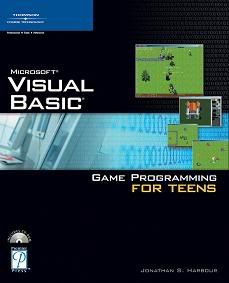
MS Visual Basic Game ProgrammingFor teens


Author(s): Jonathan S. Harbour
Publisher: Course Technology PTR
Year: 2005
ISBN: 1-59200-587-X
Language: English
File type: PDF
Pages: 392
Size (for download): 7.41 MB

This book teaches you how to create your own role-playing game (RPG) using Visual Basic and DirectX.I teach you,step-by-step,how to construct each part ofthe game using DirectX components such as Direct3D.Ifyou think RPGs are fun to play,wait until you start working on your very own! Constructing an RPG is far more interesting than playing one, because you are in complete control over the RPG world,and you can let your imagination loose to create adventures for others to enjoy.

Before you can get to the point where you can design an adventure and build an RPG with Visual Basic,you need to learn the language and get up to speed on DirectX.My goal with this book is to teach you just what you need to know in order to make this happen,without going into detail.You learn what you need to know to construct an RPG and nothing more.

You might choose to use a product such as RPG Maker, rather than writing your own RPG with Visual Basic.That is certainly a good alternative,but wouldn’t it be more interesting to have complete control over how the game works? Certainly you can create many complete RPGs of your own design with RPG Maker in the time it takes to build just one RPG from scratch and doing all of your own programming. But after writing your own code,you have learned a promising skill—game programming! In addition,you have complete creative control over how the game operates.

This book reads like a hobby book, with no pressure and limited goals, because the primary purpose is to help you have fun learning about game programming. Typing long source-code listings out of a book is not fun,so I don’t ask you to do that in every single chapter. Instead, you learn to write short programs to demonstrate the major topics in each chapter, and over time you get the hang of it. There is no memorization required here,as I’m a firm believer that repetition—practice—is the best way to learn,not theory and memorization.


TABLE OF CONTENT:
Chapter 01 - Getting Started with Visual Basic
Chapter 02 - Your First DirectX Program
Chapter 03 - Designing the Game
Chapter 04 - Core Technique: Drawing Bitmaps
Chapter 05 - Level Editing with Mappy
Chapter 06 - The Basics of Tile-Based Scrolling
Chapter 07 - Scrolling the Game World
Chapter 08 - Advanced Scrolling Techniques
Chapter 09 - Core Technique: Drawing Sprites
Chapter 10 - Core Technique: Animating Sprites
Chapter 11 - Core Technique: User Input
Chapter 12 - Walking Around in the Game World
Chapter 13 - Core Technique: Drawing Text
Chapter 14 - Core Technique: Collision Detection
Chapter 15 - Creating the Character Classes
Chapter 16 - Adding NPCs to the Game World
Chapter 17 - Talking with NPCs
Chapter 18 - Engaging in Combat with NPCs
Chapter 19 - Adding Scenery to the Game World
Chapter 20 - Core Technique: Sound Effects
Chapter 21 - Core Technique: Background Music

Read more >>

Thursday, February 12, 2009

Speed up your internet by 20%

Microsoft reserves 20% of your available bandwidth for their own purposes like Windows Updates and interrogating your PC etc

You can get it back:

Click Start then Run and type "gpedit.msc" without quotes.This opens the group policy editor. Then go to:
Local Computer Policy
then Computer Configuration
then Administrative Templates then Network then QOS Packet Scheduler and then to Limit Reservable Bandwidth.

Double click on Limit Reservable bandwidth. It will say it is not configured, but the truth is under the 'Explain' tab i.e."By default, the Packet Scheduler limits the system to 20 percent of the bandwidth of a connection, but you can use this setting to override the default."
So the trick is to ENABLE reservable bandwidth, then set it to ZERO. This will allow the system to reserve nothing, rather than the default 20%.It works on Win 2000 as well.

Read more >>

Wednesday, February 11, 2009

Hacking Folder Lock/Folder Security


hacking folder lock

Want to see the content locked by folder lock,folder security
and other softwares.

want to bypass the restiction of folder lock to view files placed in LOCKER
folder

Want to hack folder security.

Its very easy for a desi hacker.

First let me explain the working of such softwares.

When ever we store any thing on to harddrive its file or folder entry is
made into the FAT table on the harddrive.

When ever we use explorer to view our folder the FAT table is loaded
into the RAM

Now the FAT table is loaded by the Operating System and if a folder or
file is locked under Folder LOck,Folder Security then such entry is removed
from the RAM when FAT is loaded and hence in the absense of the Entey in
the RAM such Folder is not shown in to the explorer.

When you install Folder Lock or Folder Security then it make entry in the
Registry of the current OS Thus it works well when the Same OS is Running.

Now the CRUX of the trick is that the software installed is patched with the
OS on which it was installed.

If that OS is not running then there will be no effect of the Folder LOCk on
the FAT table loaded onto the RAM.

So guys if you want to see the Locked content then just install a new windows
into other drive and run that window OS.

Now the restiction of FOLDER LOCk wont be there and you can View the LOCKER
folder which was hidden first.

The tick works well if the content is not encrypted via Folder Lock.

Read more >>

Phone Unlock Code Generator

Phone unlock code

Forgotten your unlock code
Dont worry we have came up with the best solution for You

Just download the Phone Unlock code generator and enter the IMEI number
and the suscriber and your phone number and You will get the Unlock Code of your Mobile.

Nokia ,sony ericsson and many other company Supported

Download now


Read more >>

Mobiola Web Camera v3.0.15 Symbian S60v3


alt

Transforms your mobile phone into a high-quality PC webcam.Connects mobile phone to PC using USB, WiFi (select models) and Bluetooth connectivity.Screen Capture functionality, when device screen can be demonstrated on PC real-time. NEW!!! Cool video effects. Have fun and impress your friends!
Works with Skype, Yahoo, YouTube, MSN, AOL IM, ICQ and many others as standard USB webcam.Compatible with Symbian S60 and UIQ,Windows Mobile 5 and 6, J2ME devices (see Mobiola Web Camera Lite), Blackberry.
Your Wlink is: http://wlink.us//0gt
Read more >>

34 Nokia Themes

34 Nokia Themes
34 Nokia Themes | 13.5 MB


Compatible phones : Nokia 5300, Nokia 5310 Xpress Music, Nokia 5700 XpressMusic, Nokia 6126, Nokia 6131, Nokia 6131 NFC, Nokia 6133, Nokia 6233, Nokia 6234, Nokia 6267, Nokia 6270, Nokia 6275, Nokia 6275i, Nokia 6280, Nokia 6282, Nokia 6288, Nokia 6300, Nokia 6500 Classic, Nokia 6555, Nokia 7370, Nokia 7373, Nokia 7390, Nokia 7500 Prism, Nokia 7900 Prism, Nokia 8600 Luna, Nokia 8600 Luna Prism.

http://rapidshare.com/files/161703832/34.nokia.themes.rar
Read more >>

MobiSystems OfficeSuite v5.0 S60v3

MobiSystems OfficeSuite v5.0 S60v3

MobiSystems OfficeSuite v5.0 S60v3 | SymbianOS9.1 | 4.2 MB
Word, Excel and PowerPoint® files on your Symbian phone. OfficeSuite is a complete mobile office solution, allowing you to create, view and edit Word, Excel and PowerPoint files away from your office. The new version 5 of the OfficeSuite has been especially enhanced with Microsoft ® Office 2007 file support. You can enjoy all of the great features of OfficeSuite 4 + the ability to open new Microsoft Office 2007 DOCX and XLSX files on your S60 3rd Edition phone. The program utilizes the most commonly used desktop document formats and allows you to easily acquire your sensitive documents on your handset. With the advanced editing features you can modify documents on the fly and save them in their original format, just ready to be used back on your desktop PC.
The Word Editor of OfficeSuite:
A powerful tool for creating professional documents, reports, and brochures. You can easily create everything from business letters to complete books with professional layouts, and email them from your phone.

Features & Benefits:
* Opening and viewing native DOCX files
* Editing of Microsoft native DOC files and the commonly used RTF and TXT formats
* True Type fonts and Unicode support
* Advanced spelling capabilities in 6 languages - English, German, Spanish, French, Italian, and Dutch- word auto-complete and underlining of misspelled words
* Advanced document formatting with embedded tables, images and hyperlinks
* Custom zoom to get best visualization of your documents
* Full preservation of the original document formatting
* Supports password protected Word files

The Excel Manager in OfficeSuite:
This application allows you to work with native Microsoft Excel XLS and XML files or the commonly used CSV format right on your mobile phone. A feature-packed spreadsheet manager with which you can calculate, analyze, and visually communicate your data quickly, easily and on the go.

Features & Benefits:
* Opening and viewing native XLSX files
* "Easy sum function" availble in SpreadSheets
* Editing of Excel XLS and XML files, and CSV files
* Save in the original Excel XLS and XML and CSV file format with 100% preservation of the of the document formatting
* Support of True Type fonts and ability to work with multiple fonts, font colors and font styles
* Over 100 common and scientific functions to make your calculations easy and accurate
* Custom zoom for best document visualization
* Charts
* Support of password protected Excel files
* Undo and redo
* Hiding and freezing of columns and rows

PowerPoint® Presentations in OfficeSuite:
Slides provides all the resources you need to deliver high-impact presentations from your mobile handset.

Features & Benefits:
* Support of PPT and PPS PowerPoint® native files
* Several different view modes - slide view, slide show, notesoutline view and
* True Type fonts and Unicode supported
* Landscape and portrait view modes
* Fullscreen mode
* Embedded images and charts

Award-winning Mobile Office Bundle:
OfficeSuite is designed as one complete office package with
* Common file explorer for all file formats to help you organize and manage your files
* Sending documents as Email attachments

The software is recognized by industry experts and customers alike. OfficeSuite has two separate work modes:
* In View mode you can open and read document without any limitations in functionality or time. No limited trials!
* In Edit mode documents can be modified on the device and saved in their original format. The save is available for a limited 30 days trial

4 Ways to Share Office Documents:
* Bluetooth transfer to other phone or PC
* Infrared beaming
* Direct upload from/to your PC via cable connection


Read more >>

RegTool v2.8.3331588

RegTool 2.8.3331588

A professional registry repair and full-proof privacy protection application

RegTOOL is a great option for optimizing your system's performance. It affords users the chance to restore their computer to like-new condition, all with a simple click of the mouse. No other program blends such proficiency with such ease-of-use.

Using RegTool is fast and easy. In under two minutes it can detect and repair corrupt paths, outdated shortcuts and duplicate entries, sweeping away the hurtles to optimal PC performance.


alt

alt alt alt


RegTool v2.8.3331588
http://rapidshare.com/files/196582050/RegTool_2.8.3331588.rar

Read more >>